
THE BEAD WORKSHOP
Perler Bead Pattern Maker
Create a Perler bead pattern from your photo, choose the grid and colors,
and download a numbered pattern with bead counts.
 ORIGINALBEAD PLAN
A pattern ready to follow.
32 columns × 32 rows · one color per cell
Preparing your example…
Edit the colored cells in a spreadsheet Plan a tapestry crochet chart →Create an open-and-filled filet chart →A PHOTO, RECONSIDERED IN BEADS
Turn a Photo into a Perler Bead Pattern
Start with a clear silhouette.
Keep the details that matter.
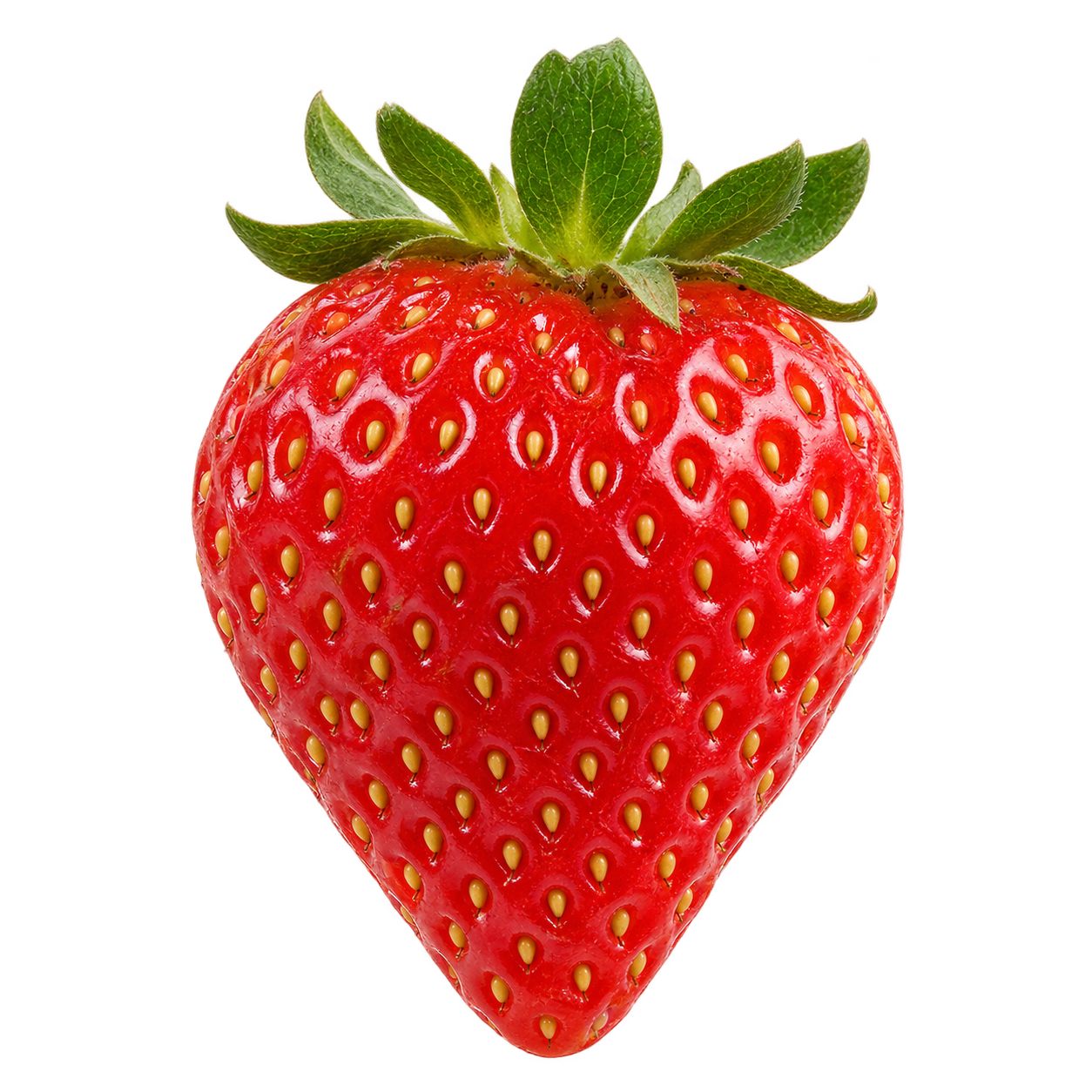
THE SOURCE THE BEAD PLAN
Original AI-generated example image; output produced by this tool.
Try the strawberry before your own photo
This Perler bead pattern creator reduces your image to a square grid, maps the colors to our selected Perler palette, and counts every occupied position. Transparent positions stay empty.
For a photo to Perler bead pattern conversion, choose one clear subject with good contrast. Small faces, fine text, and busy backgrounds lose detail at low bead counts. Crop your image first or increase the grid if the silhouette becomes unclear.
Download the strawberry patternThe sample uses a 29 × 29 pegboard capacity. Downloading it leaves your current work in place.
ONE DESIGN. A CLEAR ASSEMBLY ORDER.
Set the Bead Grid and Pegboard Layout
Image dimensions choose the detail.
Board capacity chooses the page splits.
Count pegs, then set the capacity
The bead grid supports 8–128 columns and rows. The 29, 58, and 87 presets make it easy to plan in multiples of 29; check your own board before using that capacity. Keep the image proportions locked, or unlock them to set both dimensions yourself.
Enter the usable peg columns and rows of one board, from 8 to 29 per side. Larger designs split into numbered sections, moving left to right and then down. The last section can be smaller. All sections keep their global row and column numbers, so a boundary never duplicates or drops a bead.
A 58 × 58 design with a 29 × 29 capacity uses four board sections. Confirm that your physical boards connect in the arrangement you intend.
Numbers match the PDF board titles. Empty edge positions are included in the layout.
KNOW WHAT GOES ON EACH PEG
Choose Colors and Check Bead Counts
Your color key updates with the preview.
Use the color limit to simplify the design. Replace a listed color with another supported color, or choose Remove → empty to clear all its positions. Counts and the PDF update together. Removing a color does not automatically recognize or remove a photo’s background.
| Key | Perler color / bag code | Beads | Change color |
|---|
About this palette and its color accuracy
Version perler-solids-16-v1-2026-10-09 includes 16 selected solid colors. Names and 1,000-count bag codes were checked against Perler’s product listings on October 9, 2026. This is a limited subset, not the full Perler catalog.
Screen swatches are our approximate working RGB values, not manufacturer measurements. Lighting, displays, and physical beads can look different. Compare the proposed colors with your own beads before building. Hama and Artkal palettes are not included. This is an independent tool, not affiliated with Perler.
TAKE THE PLAN TO YOUR WORKTABLE
Print Your Pattern and Color Key
Color plus letters.
A readable plan even without color ink.
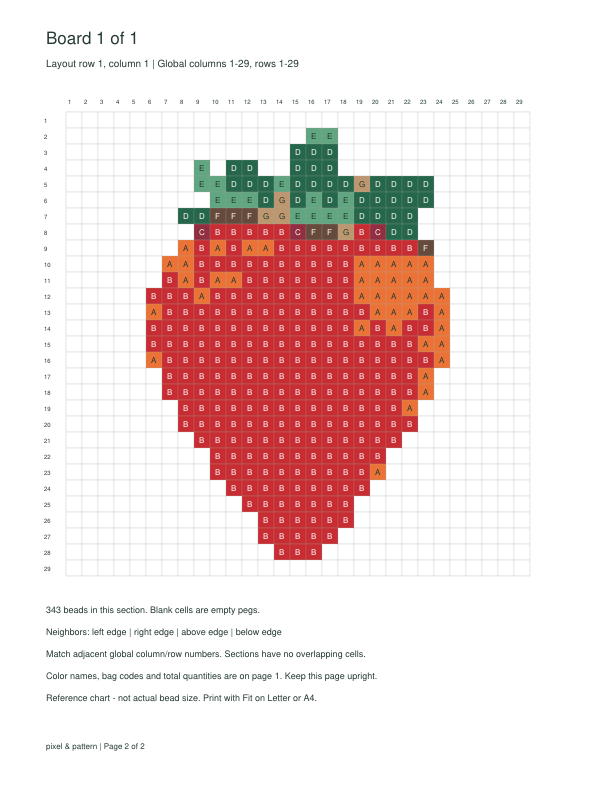
Read the key, then follow the board pages
- Page 1: color names, bag codes, letter symbols, and the exact quantity used by this pattern. Add any spare beads separately.
- Following pages: one numbered board section per page. Each filled cell carries a letter from the color key; blank cells need no bead.
- At a join: follow the neighboring board numbers and global coordinates. Keep every page upright.
- Before printing: choose Letter or A4 paper and Fit. The chart is a reference, not a life-size pegboard underlay. Ink-saving mode keeps the symbols and grid without colored fills.
Inspect the outline and color choices before committing beads. Digitally checked counts and page boundaries do not prove that a physical piece will hold together; isolated beads and thin connections need your judgment.
Need only a pixel art PNG? →For editable colored cells, open the spreadsheet pixel art converter. Your current image and preview colors follow you within this tab.
BEFORE THE FIRST BEAD
Pattern Maker Questions
Practical details for your next
photo-to-bead project.
Can I make a Perler bead pattern from a photo?
Yes. Choose a PNG, JPG, or WebP up to 20 MB and 24 megapixels. Set the bead grid and color limit, inspect the outline, and adjust colors in the key. A single subject against a simple background usually needs fewer changes than a detailed scene.
How many beads does my pattern need?
The live total is the sum of every color’s quantity. Each occupied grid cell counts as one bead; transparent cells and colors removed to empty count as zero. These are design quantities, without an allowance for lost or spare beads.
Can I print the pattern across multiple pages?
Yes. The PDF contains a color-key page followed by a page for each board section. Set your board capacity to control the splits. Each section gives its row, column, neighboring board numbers, and global cell coordinates.
How do I remove the background from a bead pattern?
Use a PNG or WebP that already has transparency and leave Preserve transparency on. Pixels below 50% opacity become empty positions. For a flat background, you can remove its color in the key, but that also clears the same color inside the subject. This tool has no automatic subject cutout.
Can I use fewer colors or replace beads I do not have?
Choose a lower color limit or replace a color using the live key. Replacing two colors with the same color merges their quantities. Restore automatic colors to undo all replacements and removals. A new image resets those edits.
Are the screen colors an exact match for real beads?
No. Product names and bag codes identify the selected Perler colors, but the RGB swatches are approximations. Check your physical supplies before assembling. Specialty finishes, other brands, and the full Perler catalog are outside this version.
Does the PDF print at actual bead size?
No. It is a symbol chart to read beside your board, not a template to place underneath it. Print with Fit on Letter or A4. Match the cell coordinates to the pegs, rather than measuring the printed squares.
Is my image uploaded or stored?
Conversion and downloads happen in your browser. No image or filename is sent to our server. Switching tools in this tab uses temporary browser storage to carry your source and settings. A transfer is deleted when read; unused transfers expire after one hour and are cleaned up on the next transfer. Download your work before closing the tab.
Working with stitched beads? Create an editable kandi chart with shifted brick-stitch rows.